
Pick your starting point
First check PC Requirements and your current graphics driver. If the game fails to launch or an error blocks play, follow Launch Troubleshooting. Once you can play, use the comparison loop below.[3][4]
- 01 · RECORD
Save your baseline
Note resolution, preset, upscaler and frame generation. Capture the benchmark result and choose a repeatable checkpoint.
- 02 · CHANGE
Move one control
Change a single option. Re-run the benchmark and the same movement or combat route.
- 03 · KEEP
Judge the whole scene
Compare dips, image clarity and how aiming feels. Restore the baseline if the change makes your session worse.
Low Core Mode: compare before enabling
In Tom’s Hardware’s 1080p High tests with an RTX 5090, Low Core Mode lowered average FPS on all 25 desktop CPUs without improving 1% lows. These three results are examples, not a forecast for your PC.[1]
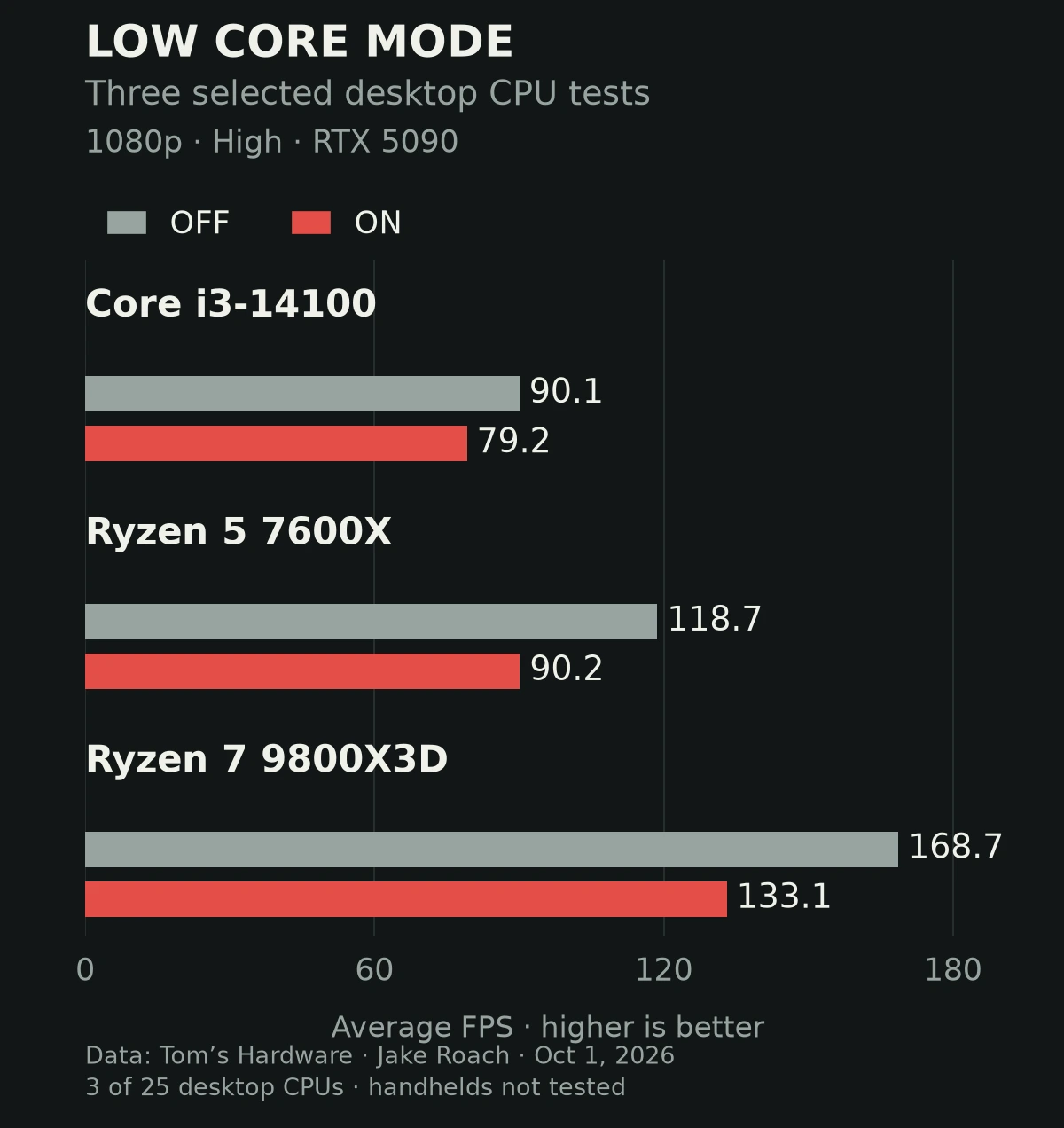
| Desktop CPU | Mode off | Mode on | Change |
|---|---|---|---|
| Core i3-14100 | 90.1 | 79.2 | −12.1% |
| Ryzen 5 7600X | 118.7 | 90.2 | −24.0% |
| Ryzen 7 9800X3D | 168.7 | 133.1 | −21.1% |
An artificially limited two-core test improved with this mode. Mobile CPUs and handhelds were not tested, so these desktop results do not settle every device’s best choice.[1]
For a desktop, start with the mode off and compare if you have a reason to try it. On a handheld, keep the power profile and scene consistent while comparing both states. Keep the choice that improves your actual session.[1]
An RTX 3060 starting profile
| Option | Tested choice |
|---|---|
| Output resolution | 1920 × 1080 |
| Graphics preset | Medium |
| Upscaling | DLSS Quality |
| Reported result | Above 60 FPS average in the reviewer’s test |
Jeffrey Kampman’s test found that raising this profile to High worsened 1% lows. On the tested RTX 3060, Ludicrous roughly halved performance versus Ultra. Medium also retained more shadow detail than Low in his visual comparison.[2]
Treat the profile as your first trial. Your CPU, scene and game version can change the result. If you use different hardware, start with a comfortable preset and apply the same measurement loop rather than copying an FPS promise.[2]
Follow the symptom you can see
| What happens | Try next | Watch for |
|---|---|---|
| The whole scene runs slowly | Try the next lower preset, then separately compare a supported upscaler’s Quality mode. | Average FPS, dips and clarity while moving. |
| A lower preset barely changes FPS | Compare Low Core Mode states and inspect CPU/GPU readings in the same scene. | Whether the measured bottleneck changes; one reading alone is inconclusive. |
| Still frames look good; movement looks unstable | Compare upscaling choices while panning past foliage, wires and bright lights. | Flicker, trails, noise and target visibility. |
| The FPS number rises, but aiming still feels sluggish | If available on your hardware, compare frame generation on/off with the same base settings. | Input feel alongside the measured base frame rate. |
Can I turn ray tracing off to recover performance?
The game requires hardware ray tracing. The developer’s published specifications are the reference for supported hardware; the launch graphics test also reports no RT-off path.[2][3]
Why can frame generation disagree with the performance overlay?
The launch overlay excludes generated frames. Keep base FPS and generated output separate in your notes, and compare aiming feel as well as the displayed number.[5]
Your next test session
This is a personal test checklist, not a game unlock. Progress is saved in this browser. Keep your settings and FPS values in your own notes or screenshots so you can compare later.
Your checks are saved in this browser. This checklist does not sync with the game.
| Done | Step | Record or compare |
|---|---|---|
| Baseline | CPU/GPU, driver, game version, preset, resolution, upscaler and frame generation. | |
| Benchmark | Run the built-in benchmark; record the result before changing settings. | |
| Real checkpoint | Replay one fixed route with combat or movement, then capture dips and image issues. | |
| Single change | Repeat with one changed setting and restore the baseline to check the difference. | |
| Keep a profile | Save a screenshot of the settings you prefer and test a second representative scene. |
The CPU reviewer’s benchmark ran slightly slower than two played scenes. Check your actual route as well.[1]
Sources & further reading
- Original tests of 25 desktop CPUs and Low Core ModeTom’s Hardware · Jake Roach · October 1, 2026
- Original graphics tests of 43 GPUs and RTX 3060 preset scalingTom’s Hardware · Jeffrey Kampman · October 1, 2026
- E-Day final PC specifications and September 29 pre-installXbox Wire / The Coalition · September 17, 2026; specifications image updated September 28
- GeForce Game Ready 617.14: E-Day, DLSS and RTX Mega GeometryNVIDIA · September 22, 2026
- Emergence Begins: Season 1, launch changes and known issuesThe Coalition · September 30, 2026